Overview
This guide explains how to create online access codes on an online smart lock. With the Access Codes API, generate PIN codes on a door lock and share it with visitors, allowing them keyless access. Seam supports programming two types of online access codes for online door locks:- Ongoing: Ideal for residents or long-term users. Ongoing codes remain active on a device until removed. Create one by omitting both
starts_atandends_at. To remove the code, use the Delete Access Code endpoint. - Time Bound: Suitable for temporary access like guest visits or service appointments. These codes operate between a designated
starts_atandends_attime window, granting access only during that period.
For more information about creating offline access codes, see Managing
Offline Access
Codes.
Before You Begin: Confirm Capabilities
Before you attempt to create an online or offline access code, be sure to confirm that your device has the capability to perform these operations. You can inspect the capabilities of a device by checking the following capability flags for the device:device.can_program_online_access_codesdevice.can_program_offline_access_codes
if statement or similar check to confirm that the relevant flag is both present and true before attempting to create an access code.
If either of these capability flags is false or not present, you can view the properties of the device, errors or warnings for the device, and events related to the device to learn more about the cause of these issues. For example, you could examine the following device properties:
device.properties.model.has_built_in_keypaddevice.properties.model.can_connect_accessory_keypaddevice.properties.accessory_keypad.is_connecteddevice.properties.accessory_keypad.battery.level
device.accessory_keypad_disconnected event.
Request:
Programming an Ongoing Online Access Code
Ongoing online access codes are ideal for long-term users that wish to keep the same code. Ongoing codes remain active on a device until removed.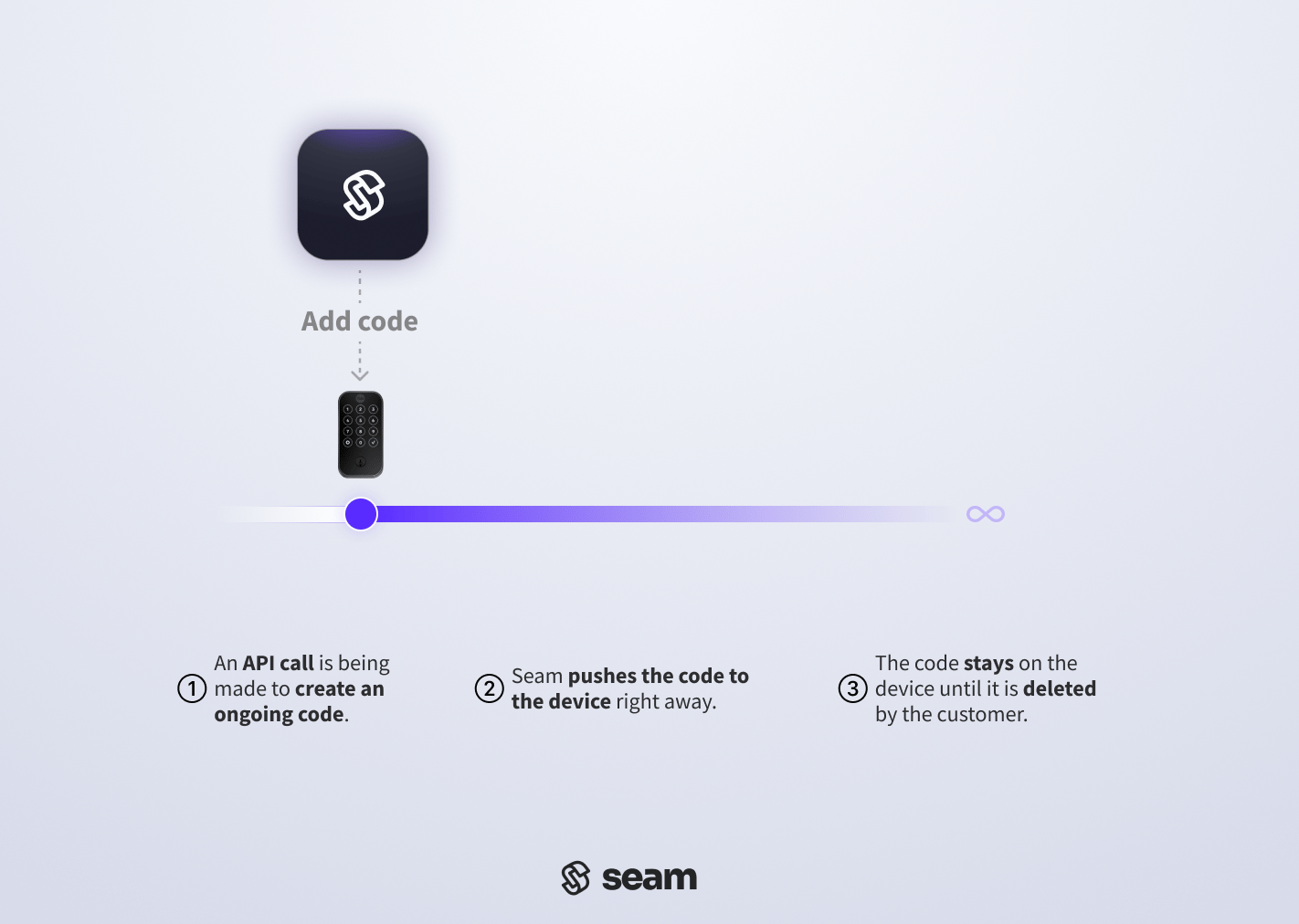
1. Create an Ongoing Online Access Code
Set an ongoing online access code by providing thedevice_id of the smart lock on which you want to create an access code. Assign an optional name to the access code for easier identification within the Seam Console and smart lock app.
To customize the PIN code, specify a desired PIN for the code property. If you do not specify a code, you can set the preferred_code_length, and Seam generates a code of this length if the affected device supports the specified preferred code length. See Access Code Requirements for Door Locks to understand any requirements specific to the door lock.
Request:
2. Verify Successful Ongoing Code Programming
Seam may encounter some problems when setting an access code onto the lock. This could be due to weak internet connectivity, a low battery in the door lock, or someone unplugging the bridge that links the lock to the internet. Given these potential challenges, it’s essential to verify that a code has been successfully programmed on to the lock to prevent unexpected complications later. There are two methods to verify that an ongoing access code has been set on the device:- Polling: continuously query the access code until its
pending_mutationslist is empty - Webhook: wait for updates to arrive via webhook requests from the Seam API
Polling Method
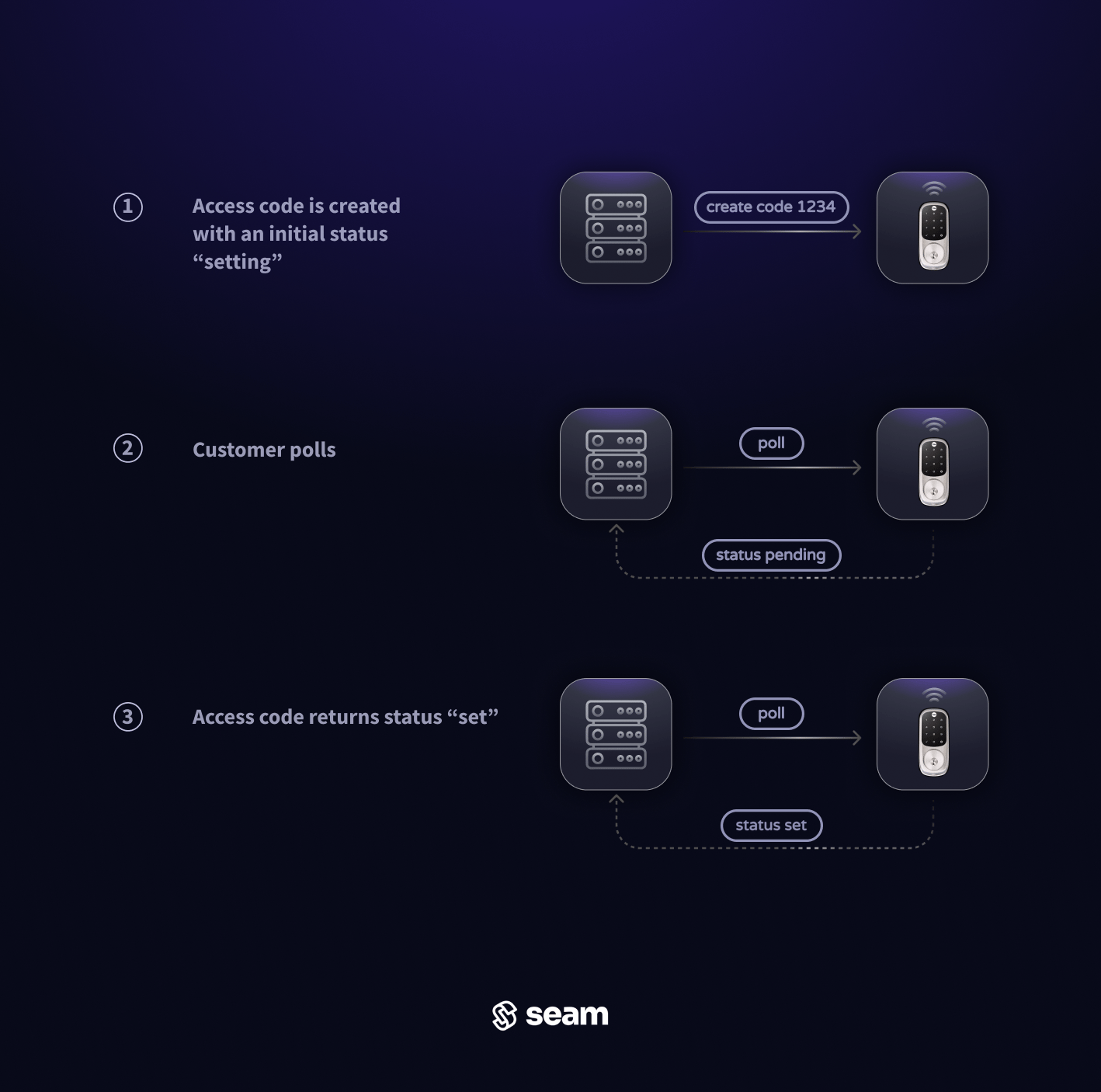
Use theaccess_code reference returned by the create function to call the Get Access Code function. A basic implementation would involve polling this endpoint until the access code’s pending_mutations list no longer contains a creating mutation, which indicates that the code was programmed onto the device.
If the creating pending mutation remains for a very long time, or if the access_code object contains any warnings or errors properties, consult the guide on “Troubleshooting Access Code Issues” for further guidance.
Webhook Events Method
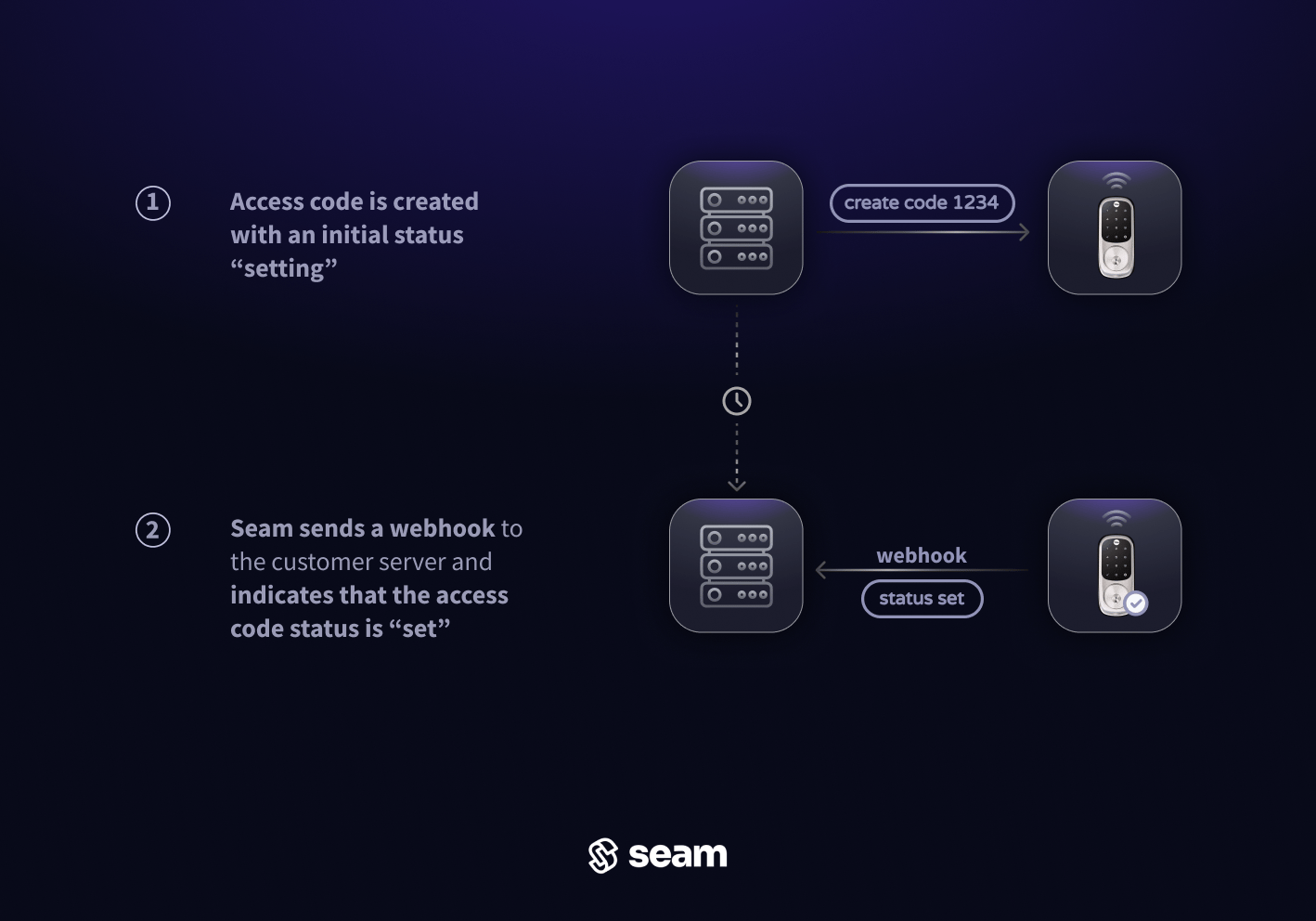
To avoid polling, monitor for incoming Seam webhook events related to the code status:- The
access_code.issuedevent indicates that the access code was successfully programmed and will work for its desired time frame. - The
access_code.delay_in_issuingoraccess_code.failed_to_issueevents indicate a delay or failure. See Lifecycle Events for the recommended actions to take.
Scheduling Time-Bound Online Access Codes
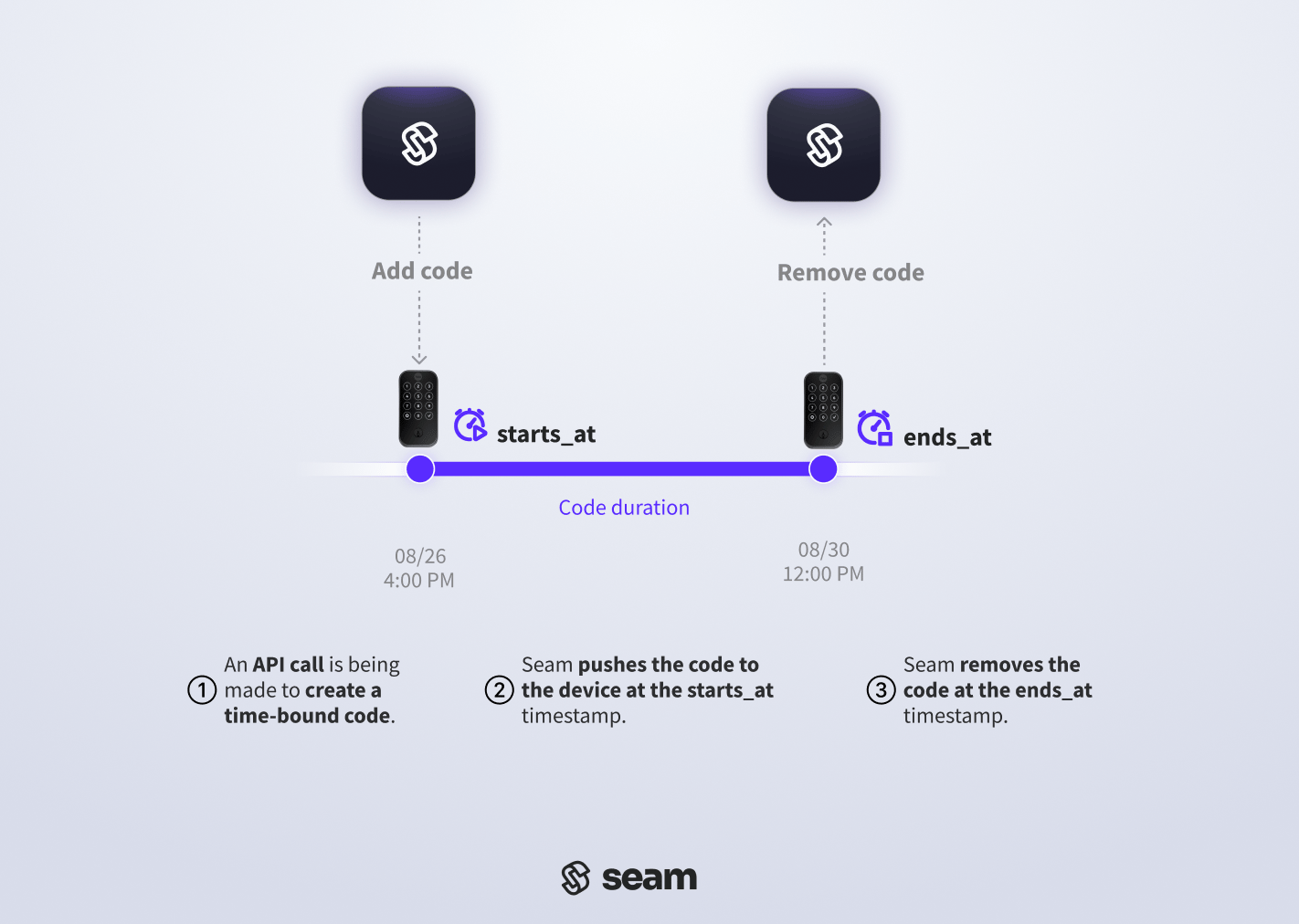
Time-bound online access codes are suitable for temporary access, like guest visits or service appointments. These codes operate between designatedstarts_at and ends_at timestamps, granting access only during that period. Seam automatically ensures that the code is programmed on the device at the starts_at time and unprogrammed at the ends_at time.
1. Create a Time-Bound Online Access Code
To set a time-bound online access code, provide thedevice_id of the smart lock on which you want to program a code, along with starts_at and ends_at ISO 8601 timestamps to define the active time window for the code. For more details, see the Create Access Code endpoint.
As with ongoing codes, you can assign an optional name to the access code. A clear name helps users to identify the access code quickly within their smart lock app.
Similarly, to customize the PIN code, specify a desired PIN in the code property. If you do not specify a code, you can set the preferred_code_length, and Seam generates a code of this length if the affected device supports the specified preferred code length. See the Access Code Requirements for Door Locks to understand any requirements specific to the door lock brand.
Request:
2. Verify Successful Time-Bound Code Programming
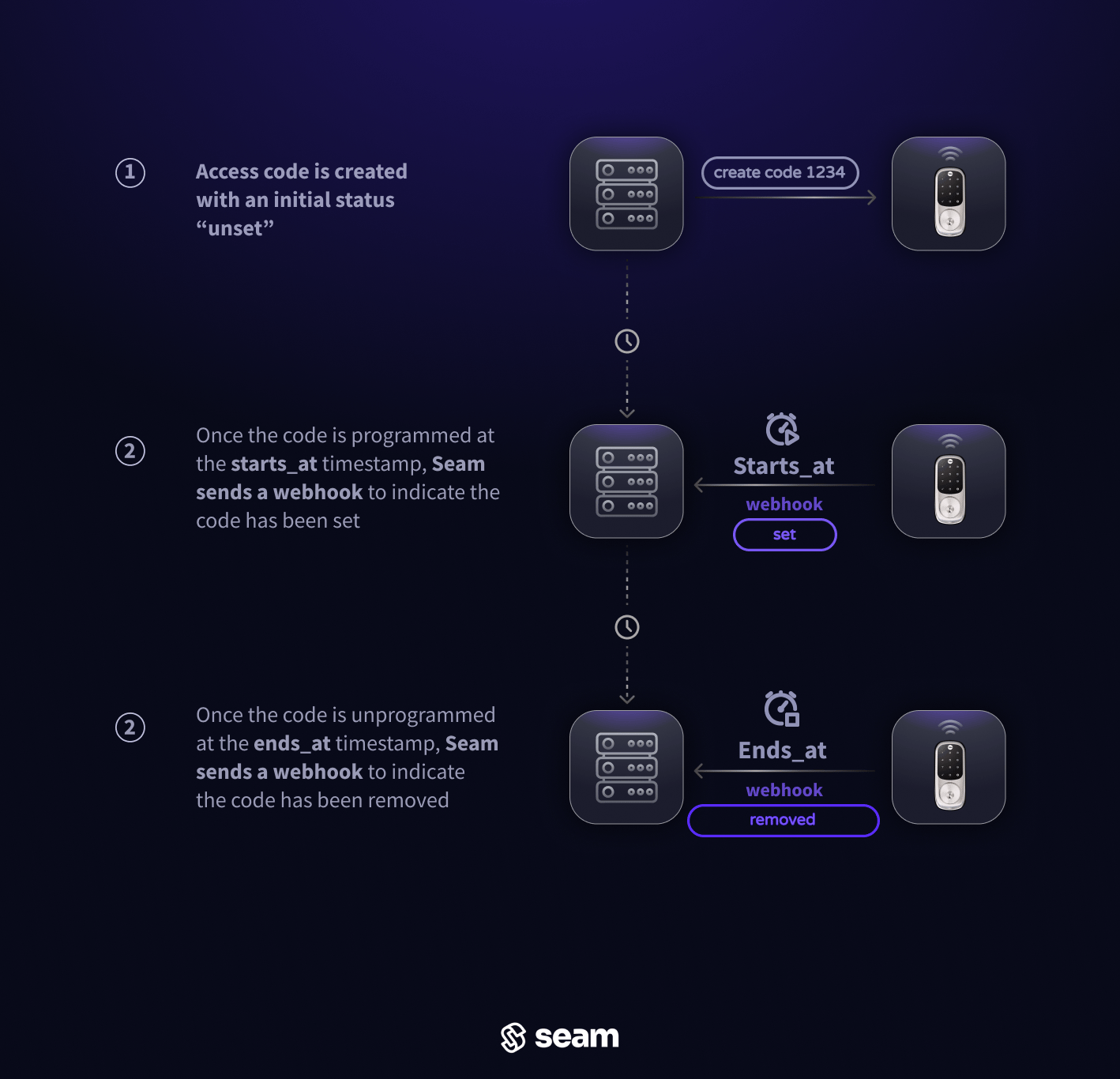
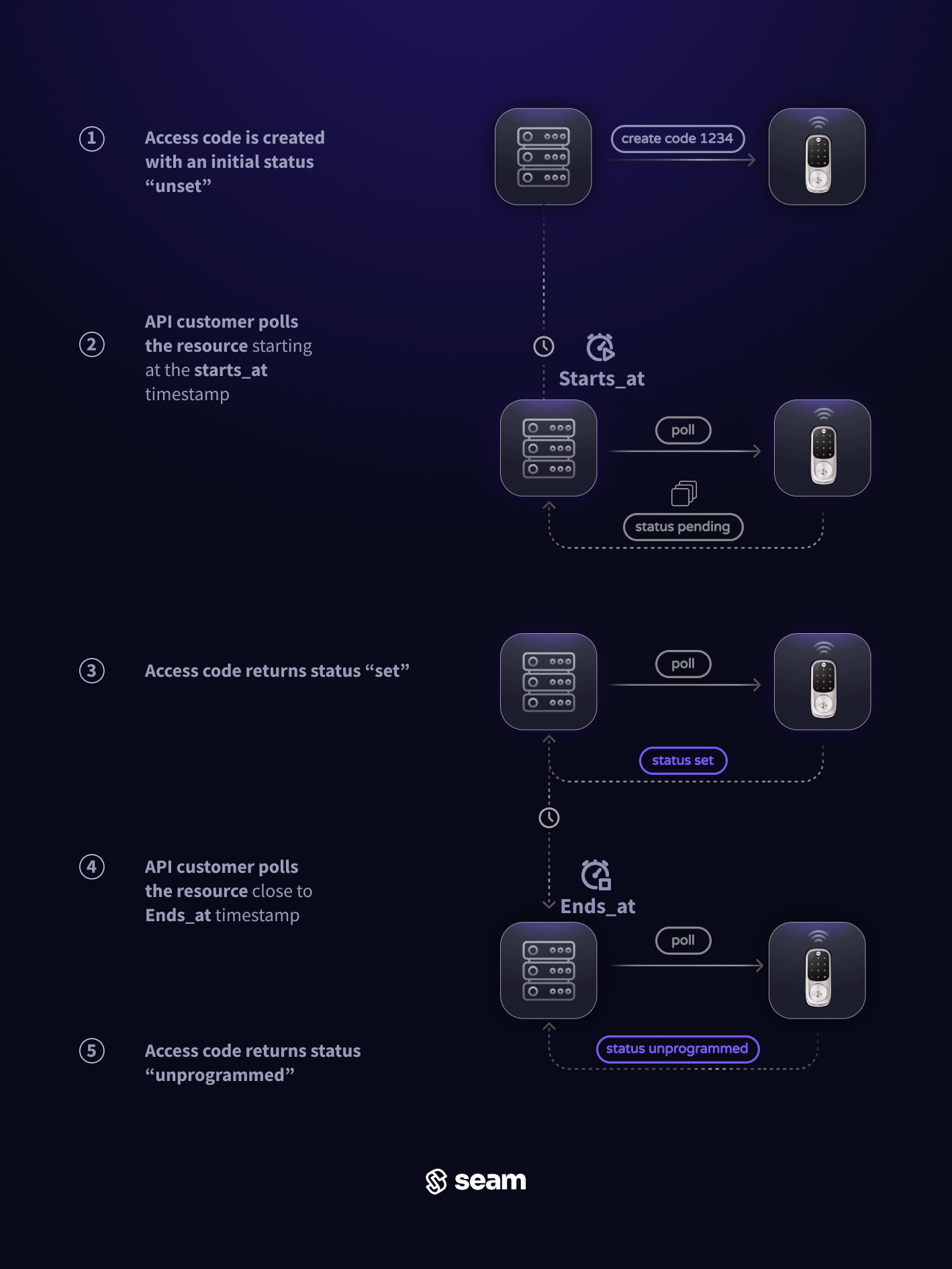
The lifecycle of a time-bound access code is marked by distinct phases:- Waiting to issue: For natively-scheduled codes, Seam deliberately waits to program the code onto the lock until close to the
starts_attime. The code carries adeferring_creationpending mutation while Seam is waiting. - Issuing: Seam programs the code onto the lock. The code carries a
creatingpending mutation while this work is in progress. - Upcoming: The code is on the lock but its
starts_attime has not arrived yet. For natively-scheduled codes, Seam preloads the code ahead of thestarts_attime; it waits on the device for its activation moment. - Active: The pending mutation clears and Seam emits the
access_code.issuedevent, signaling that the code is loaded onto the lock and may grant the designated user the ability to unlock the door.
access_code.delay_in_issuing and access_code.failed_to_issue events and the matching warning and error on the access code. For more information on the lifecycle of access codes, please refer to this guide.
There are two methods to verify that an time-bound access code has been set on the device:
- Polling: continuously query the access code until its
pending_mutationslist is empty - Webhook: wait for updates to arrive via webhook requests from the Seam API
Polling Method
Use theaccess_code reference returned by the create function to call the Get Access Code function. In a basic implementation, you would poll this endpoint to check that the access code’s pending_mutations list no longer contains a creating or deferring_creation mutation, which indicates that the code was programmed onto the device.
If a creating pending mutation remains as the starts_at time approaches, or if the access_code object displays any warnings or errors, refer to the “Troubleshooting Access Code Issues” guide for assistance.
Webhook Events Method
To avoid polling, monitor for incoming Seam webhook events related to the code status:- The
access_code.issuedevent indicates that the access code was successfully programmed and will work for its desired time frame. - The
access_code.delay_in_issuingoraccess_code.failed_to_issueevents indicate a delay or failure. See Lifecycle Events for the recommended actions to take.