

How it works
Reservation Automations follow the lifecycle of a reservation:- You create spaces and assign devices using
/spaces/create. - You send reservation and guest data with
push_data. - Seam applies the right access and climate settings at the right times.
- Webhooks notify you when settings are issued, updated, or revoked.
- If a reservation is canceled, call
delete_datato request removal of its related resources.
Before you begin
Set up these resources in your Seam workspace:- Customer – identify who the automation belongs to with a
customer_key. - Spaces – represent the real-world units your customer manages (i.e. Room 101 in a hotel, Studio 3 in a gym). Each space must be created via
/spaces/createwith aspace_keyand assigned devices or entrances before you callpush_data. Reservations reference these spaces byspace_key. - Devices or entrances – connect locks, thermostats, or ACS entrances to each space (e.g., assign the lock in Room 101 to the Room 101 space). Use
device_idsfor smart locks and thermostats, oracs_entrance_idsfor access control system entrances. - Guest identity keys – reuse the same
user_identity_keyfor the same guest. When shared email and phone are disabled, using the same contact details for different guest keys can cause a conflict. Check Automation Runs for identity errors.
You can also let customers configure their own accounts, spaces, and devices
with Customer Portals.
1. Create spaces with devices
Before pushing reservation data, create a space for each bookable unit using the/spaces/create endpoint. Each space must have a space_key (your identifier) and at least one assigned device or entrance.
device_ids for smart locks and thermostats, or acs_entrance_ids for access control system entrances. You can include both if the space has multiple access points.
The space_key is what you reference in push_data reservations. Without it, push_data cannot match reservations to the space.
2. Customize automation settings
After enabling automations, you can configure how access credentials are issued for each reservation. These settings are available in Console > Developer > Automations under the access automation section. Access methods Choose which credential types to issue when a reservation is created. You must enable at least one.
Access method creation strategy
Controls how many access methods are created per device when multiple types are enabled:
Card count
The number of plastic cards to create per reservation. Only applies when the plastic card access method is enabled.
Instant key max use count
The maximum number of times a mobile key can be used. Only applies when the mobile key access method is enabled.
Use last digits of guest phone as code
When enabled, Seam uses the last digits of the guest’s phone number as the PIN code instead of generating a random one. The phone number is looked up from the user identity data you provide via
push_data. In the automation configuration, this setting is prefer_guest_phone_last_digits_as_code.
The code length matches the locks in the reservation’s spaces. Seam uses only lengths that every lock in those spaces supports, starting with the shortest. If no lock reports its supported lengths, Seam uses 4, 5, or 6 digits. For example, a space whose lock accepts only 6-digit codes gets the last 6 digits of the phone number.
Seam skips digits that would make a weak PIN and uses a longer code instead. A weak PIN is:
- a repeated pattern, such as
0303or454545 - the same digit repeated, such as
1111 - an ascending or descending sequence, such as
1234or6543
580303 gets 80303 instead of 0303.
PIN code priority:
- An explicit
preferred_codeon the reservation always takes precedence. - If no
preferred_codeis set and this option is enabled, Seam uses the last digits of the guest’s phone number, as described above. - Seam falls back to an auto-generated code in these cases:
- the phone number is unavailable or too short
- every candidate code is weak
- the locks in the reservation’s spaces share no code length
The derived code is a best-effort preference, not a guarantee. A device or
access system can still refuse it. For example, the code may already be in
use on that lock. Seam then assigns a different code and adds a
requested_code_unavailable warning to the access grant and to the affected
access method. The warning includes both the requested code and the assigned
code.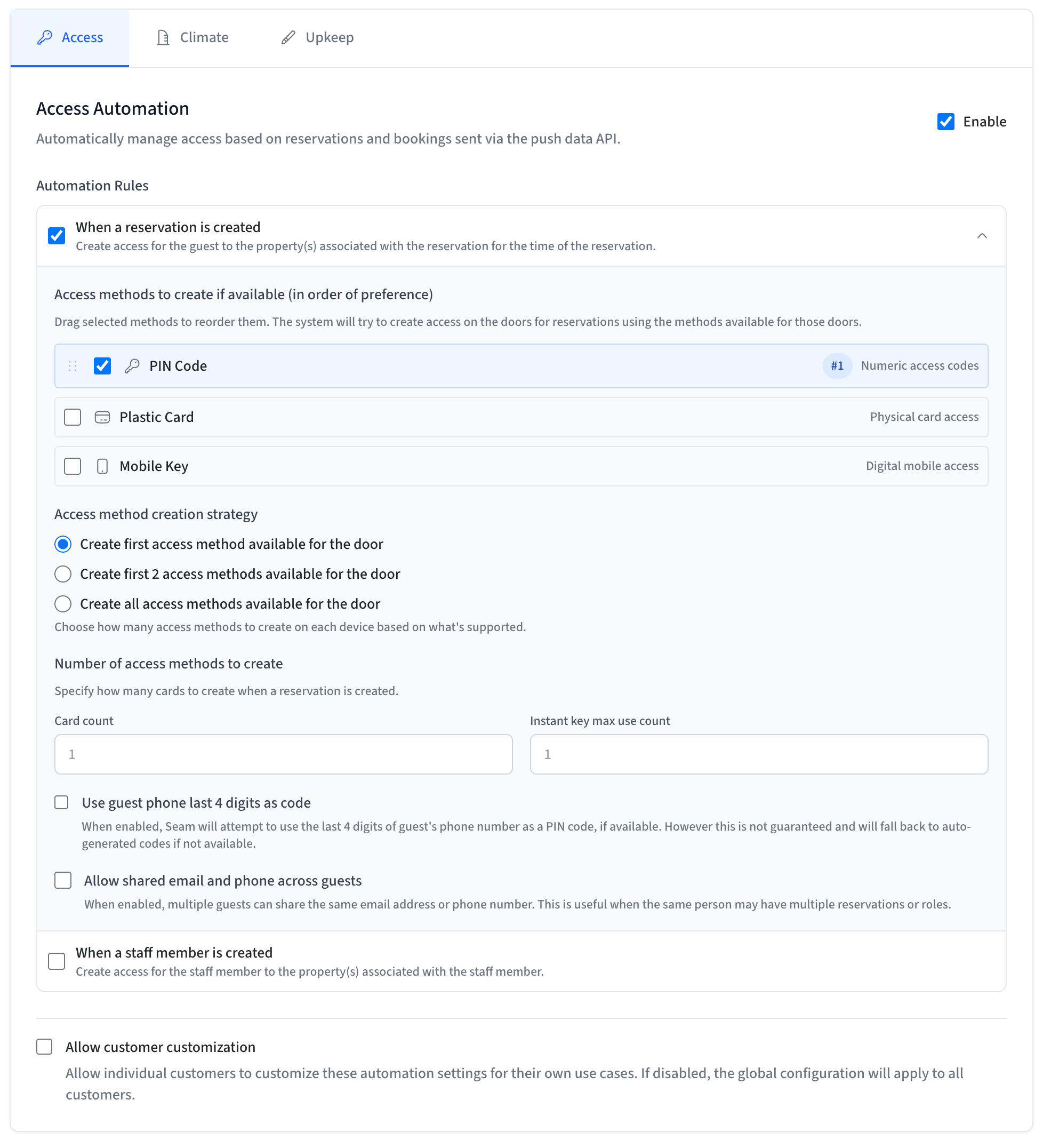
3. Push reservation data
Use thepush_data endpoint to send customer, user, and reservation data to Seam. Automations use this information to configure devices at the right times.
A reservation represents a time-bound assignment of a user to a space. This can be a hotel stay, a gym day pass, or a coworking member’s conference room booking. Each reservation must include a unique reservation_key, which can be your system’s identifier for that record. Seam uses this key to know whether it should create a new reservation, update an existing one, or remove it later with delete_data.
- Call
push_datawith a newreservation_keyto create a reservation. - Call it again with the same
reservation_keyto update times or other details—Seam automatically reconfigures the device settings.
The
push_data API
reference also documents
access_grants and bookings as alternative top-level keys. This guide uses
reservations, which is the recommended key for short-term booking workflows.
If you use access_grants instead, use access_grant_keys (not
reservation_keys) when calling
delete_data.Change reservation times
Keep the samecustomer_key, reservation_key and user_identity_key when a booking changes. Send the intended check-in and checkout times as ISO 8601 timestamps with Z or an explicit UTC offset. Convert the property’s local time first; do not use your server’s local time zone.
The following JavaScript example updates an existing reservation. Install the SDK and set SEAM_API_KEY on your server. Set the environment variables to the same customer, guest and space keys used when you created it. Set CHECKIN_AT and CHECKOUT_AT to the new times.
JavaScript
Move a reservation to another space
Create the destination space and assign its devices first. Keep the reservation key, then send the complete set of spaces that should now apply. To move from one room to another, replace the old room key; including both keys keeps both spaces in the reservation. Continue with theseam, customerKey and reservation values above:
JavaScript
push_data response confirms receipt of the data, not physical access or a completed thermostat change.
Process booking notifications in order. Keep the latest booking version in your application so a delayed notification does not restore an old time or room. Reuse the same keys when retrying; do not create another reservation key for an update. Use delete_data to cancel the reservation rather than trying to represent cancellation with an empty space list.
In a sandbox, test the time change, room move and cancellation separately. Check the stored reservation and automation result as well as the HTTP response; virtual-device results do not prove physical operation.
4. Use webhooks to listen for updates
Configure webhooks in Console > Developer > Webhooks to get notified when automations apply or revoke settings. Key events:access_method.issued– access createdaccess_method.reissued– access updatedaccess_method.deleted– access removed
5. Delete data
Thedelete_data endpoint is optional but important. Use it when access or device settings should no longer apply—such as when:
- A hotel reservation is canceled
- A conference room reservation ends early
- A gym class is dropped
- An event reservation is called off
delete_data requests removal of the reservation and its related resources. Track the resulting automation and access method state before reporting that access or device settings have been removed. An accepted request does not establish immediate physical revocation.
- Pass
reservation_keysto cancel a specific reservation and remove its device settings. - Pass
user_identity_keysto remove all device settings tied to a specific person. - Pass
customer_keysto offboard an entire customer and clear all their spaces, users, and settings.
Troubleshooting
I called push_data and got ok: true but no access code was created
push_data returns a success response even when automations cannot act on the data. Check these common causes:
Check Console → Automation Runs for detailed error information. Errors
like
user_identity_email_or_phone_conflict are only visible there — they do
not appear in the push_data response.