

Step 1: Install a Seam SDK
Seam provides client libraries for many languages, including JavaScript, Python, Ruby, PHP, and others, as well as a Postman collection and an OpenAPI spec.- JavaScript / TypeScript (npm, GitHub)
- Python (pip, GitHub)
- Ruby Gem (rubygem, GitHub)
- PHP (packagist, GitHub)
- C# (nuget, GitHub)
- JavaScript
- Python
- Ruby
- PHP
- C#
This guide uses a sandbox
workspace.
You can only connect virtual devices and systems in this type of workspace. If
you want to connect a real ecobee thermostat, use a non-sandbox
workspace
and API key.
Step 2: Link your ecobee account with Seam
To control your ecobee thermostat using the Seam API, you must first authorize your Seam workspace to connect to your ecobee account. If your application needs to connect to your users’ ecobee accounts, Seam provides fully-embedded, customizable client-side Connect Webviews to collect their authorization securely. These user-friendly pre-built authorization flows walk your users through the process of granting your Seam workspace permission to control their ecobee thermostats. The Connect Webview presents a flow that prompts your users to enter their credentials for their ecobee account. In this guide, you create a Connect Webview object. Then, you display the graphical component of the created Connect Webview and enter a set of sample credentials to connect a sandbox ecobee account.This guide shows you how to create a Connect Webview programmatically using the Seam API.The Seam Console provides another easy way to connect devices to your Seam workspace.Go to https://console.seam.co/. On the Devices page, click + Add Devices. Then, see Authorize your workspace in this guide to complete the Connect Webview authorization flow.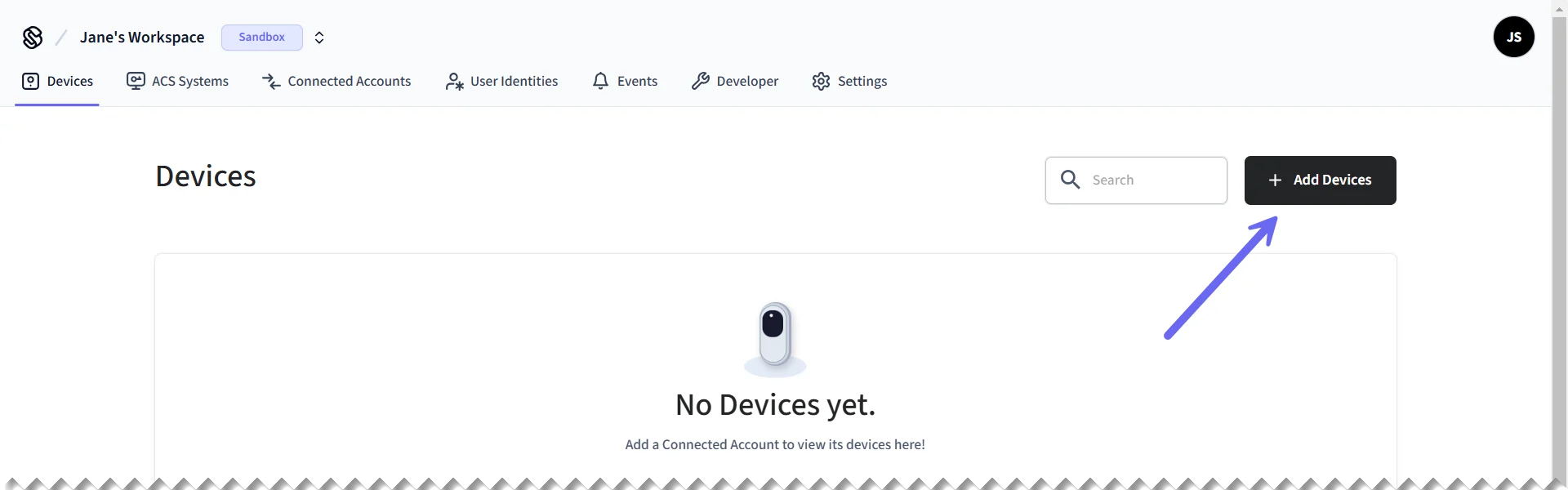
Create a Connect Webview
Create aconnect_webview object and then note the returned URL.
Code:
Authorize Your Workspace
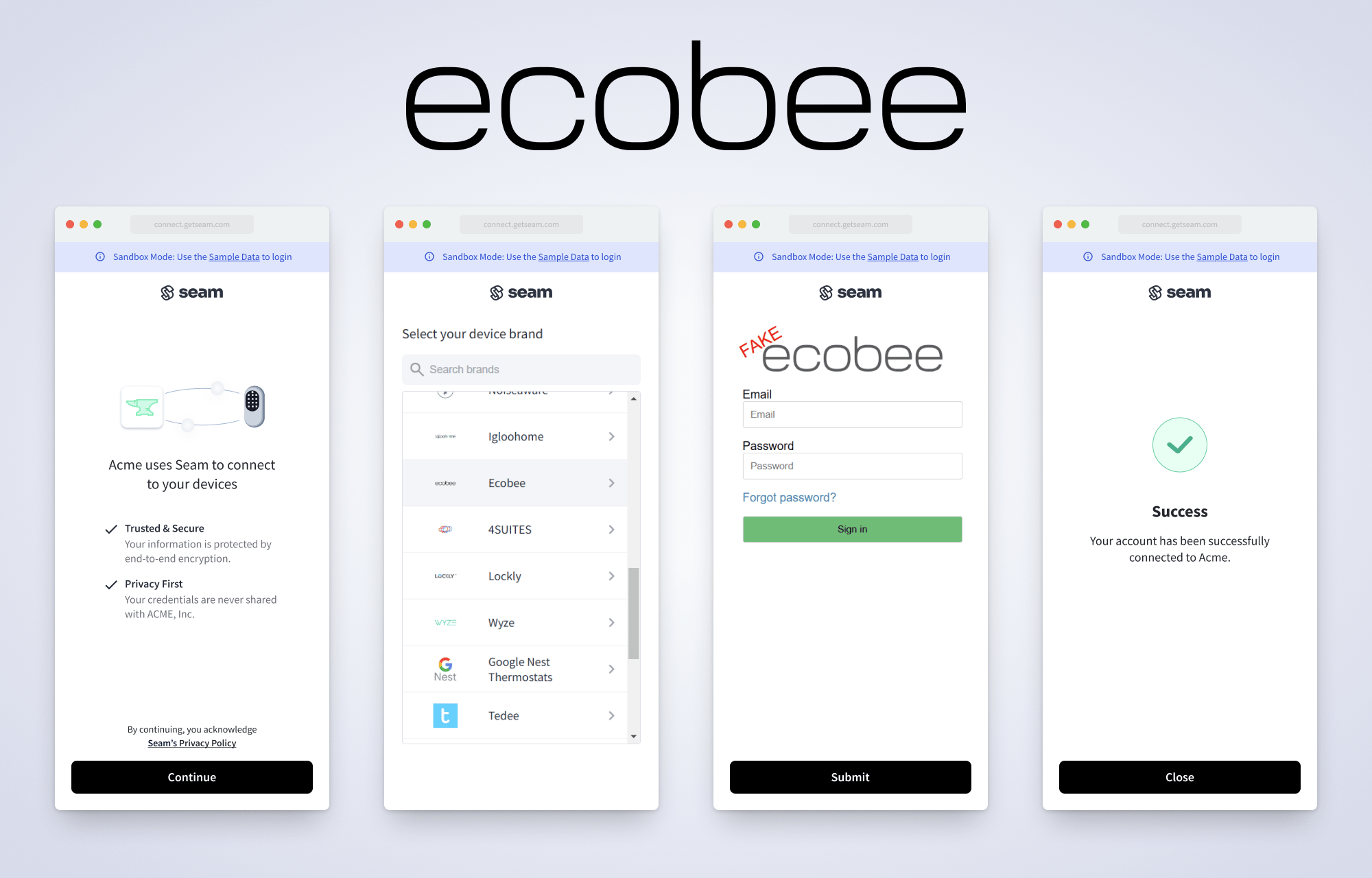
In a web browser, go to the URL that the Connect Webview object returned. For application developers, you can redirect your user to this Connect Webview URL so that they can authorize your app to control their devices using Seam. We even provide a prebuilt Connect Account Button within our suite of Seam Components that help you build your device management flow.Because you’re using a sandbox workspace, you can connect Seam’s test ecobee
account. We provide virtual devices for each of the
brands that we support. These sandbox devices and systems enable you to test
your app with devices from multiple brands without the need to own all the
corresponding physical devices.
- Email: jane@example.com
- Password: 1234
Step 3: Retrieve ecobee thermostat devices
When you link an ecobee account with Seam, we create adevice object to represent each ecobee thermostat in your account. You can then retrieve these ecobee devices using the List Devices and Get Device endpoints.
The Seam API exposes each device’s properties, such as the current temperature reading in Fahrenheit and Celsius, current HVAC and fan modes, available climate presets, thermostat-specific constraints, and much more.
Code:
Step 4: Control your ecobee thermostat
Next, you can use the Seam API to control your ecobee thermostat. Each device that you connect to Seam has a specific set of capabilities. These capabilities define the Seam API actions that you can use. For thermostats, device-specific capabilities include whether you can set the HVAC mode toheat, cool, or heat_cool. Seam’s intuitive and granular capability flags inform your application about what features and behaviors each device supports. Notice the capability flags within the code samples in this guide.
Seam provides additional actions for thermostats, such as setting the fan mode, creating and scheduling climate presets, setting temperature thresholds, and configuring weekly thermostat programs. You can also monitor for Seam thermostat-related events, such as reported temperatures outside your set thresholds.
Try out the following actions on your ecobee thermostat:
Set the HVAC mode
To set the HVAC mode, use any of the following endpoints or their equivalents in the Seam SDKs:-
/thermostats/heat -
/thermostats/cool -
/thermostats/heat_cool -
/thermostats/off -
/thermostats/set_hvac_modeThis endpoint is a consolidated version of the other four endpoints.
device_id in the request body. Also, include the desired temperature set point.
In this example, set the HVAC mode to heat and the desired heating set point to 68 °F.
Each of these HVAC mode endpoints returns an action attempt to track the progress of the operation.
Code:
properties.current_climate_setting.hvac_mode_setting for the device, retrieve the action attempt by ID, or look for a thermostat.manually_adjusted event. Further, if you wanted to find out whether the HVAC system was currently heating, you could inspect properties.is_heating for the device.
To query properties.current_climate_setting.hvac_mode_setting for the device:
Code:
Create and schedule climate presets
You can use the Seam API to create climate presets for ecobee thermostats. Each climate preset is a saved group of settings, such as HVAC mode, fan mode, and temperature set points. Climate presets make it quick and easy to apply consistent climate settings for different scenarios. For example, you could create two climate presets: a comfort preset for when a vacation rental is occupied and an eco preset for when the vacation rental is empty. You can schedule climate presets to start and stop whenever you’d like. You can even set a fallback climate preset, such as eco. In this example, create comfort and eco climate presets, set eco as the fallback, and schedule the comfort climate preset to coincide with two vacation rental reservations. Code:Handle booking changes and cancellations
Store onethermostat_schedule_id for each booking and thermostat in your application. Process booking notifications in order, ignore an older booking version, and reuse the stored ID when a notification is delivered again.
Convert check-in and checkout from the property’s IANA time zone to ISO 8601 instants before calling Seam. Do not interpret local booking times in your server’s time zone. Recompute the instants when dates change across daylight saving time. Preconditioning, such as starting comfort mode before arrival, is an offset your application chooses.
The following server-side example uses the
comfort preset created above. Set ECOBEE_DEVICE_ID to the intended thermostat and BOOKING_STARTS_AT and BOOKING_ENDS_AT to future ISO timestamps with Z or an explicit offset.
JavaScript
errors, properties.active_thermostat_schedule_id, properties.current_climate_setting and reported temperature to distinguish scheduling, applied settings and physical response. The fallback preset takes effect when no schedule or overriding control is active; account for other schedules and manual overrides. Do not switch HVAC off as a generic error fallback.
For a sandbox check, create a short future schedule, read it back, update checkout, and cancel it. This validates the API lifecycle. Verify actual HVAC response and safe unoccupied temperatures on the installed system before deployment. See thermostat schedules for the full scheduling rules, or Reservation Automations to use Seam’s reservation-data workflow.
Configure a weekly thermostat program
You can use the Seam API to create a thermostat weekly program for your ecobee thermostat. This standard feature of smart thermostats enables you to define full-week programs that are made up of reusable daily programs. Each daily program consists of a set of thermostat daily program periods, that is, time blocks with associated climate presets. In this example, create a weekday daily program and a weekend daily program. Then, combine these daily programs into a weekly program by assigning a daily program to each day of the week. Code:Step 5: Connect a real ecobee thermostat
Now that you have learned the basics of using the Seam API, you can connect and control a real ecobee device. To do so, make sure to switch to a non-sandbox workspace and API key. For more details about setting up your real ecobee thermostat, see the ecobee thermostats integration guide.Step 6: Build your application!
Seam makes it easy to develop your application. The robust Seam API and Seam SDKs in a wide variety of programming languages provide robust, up-to-date information about your thermostats. We also provide helpful thermostat-related events that enable you to monitor the status of your thermostats and the connected HVAC systems. Further, our simulation endpoints make it easy for you to test your thermostat app against events that can be difficult to orchestrate in your quality assurance (QA) environment using real devices.Next steps
Now that you’ve completed this getting started guide for ecobee devices, you can learn more about what you can do with the Seam API.- Explore
See the other devices and system integrations that Seam supports. - Learn
Read about Seam concepts and the device and system capabilities that Seam supports. - Expand your abilities
Find out what other thermostat actions you can perform using the Seam API. - Use webhooks
Learn how to use webhooks as an efficient way to receive device events. - Find out more
Explore the other types of devices and systems that you can control with Seam, including smart locks, access control systems, and noise sensors. - Develop for mobile access
Learn about Seam’s mobile access solution.
If you have any questions or want to report an issue, email us at
support@seam.co.
Quick links
Get an API Key (free)
Sign up for the Seam Console and get your API keys. →

Contact Sales
Got a project or a specific question? Contact our team to get answers. →