> ## Documentation Index
> Fetch the complete documentation index at: https://www.seam.co/docs/llms.txt
> Use this file to discover all available pages before exploring further.
# Dormakaba Oracode Setup Guide
> Connect your dormakaba Oracode locks to Seam — instructions for both Property Manager and Individual Homeowner accounts.
This guide walks you through connecting your dormakaba Oracode locks to Seam. The connection flow depends on your Oracode Live account type, so start by identifying which type you have.
## Determine Your Account Type
dormakaba Oracode Live has two account types — **Property Manager** and **Individual Homeowner** — each with a different connection flow and feature set.
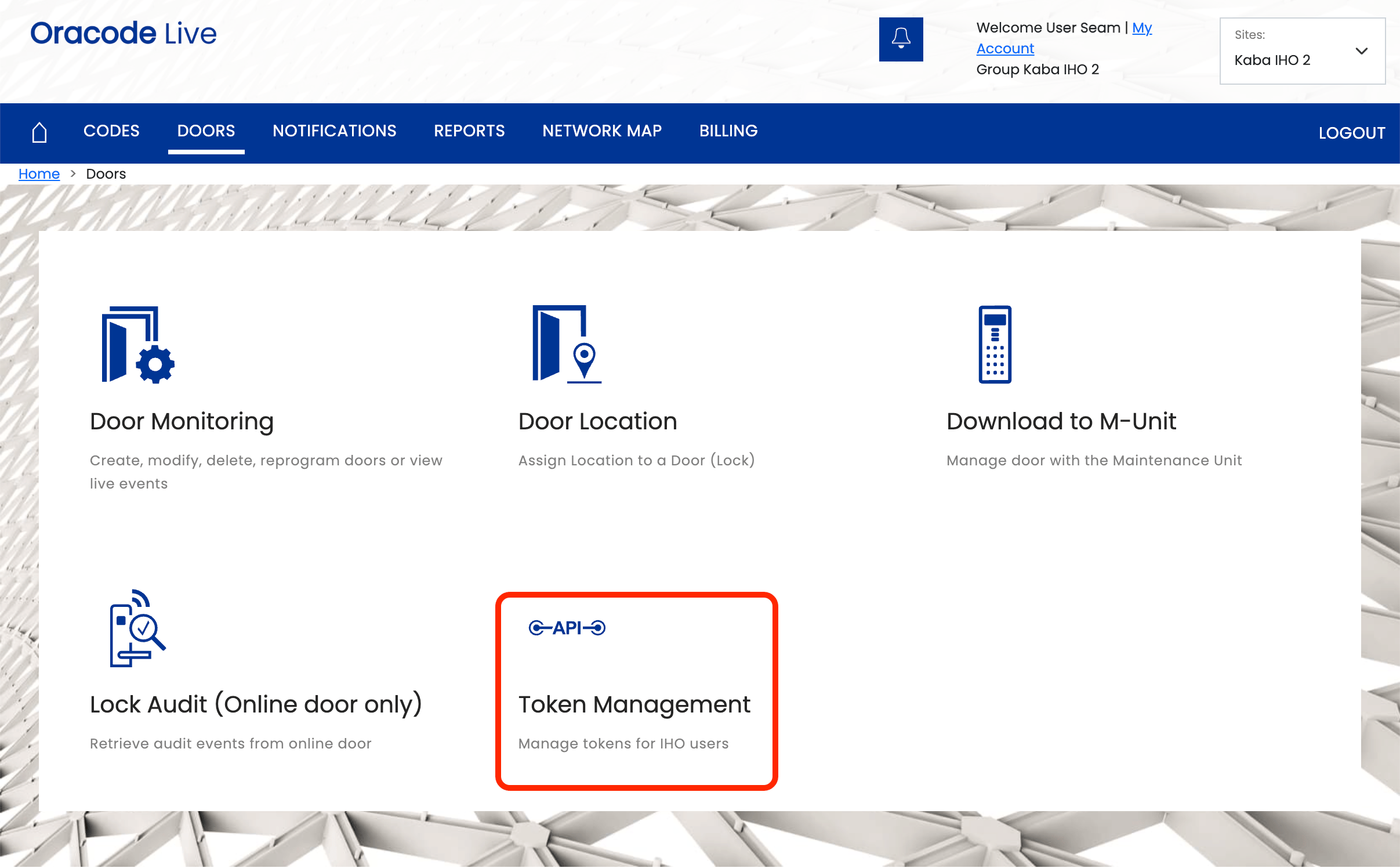
To check which type you have, log in to [Oracode Live](https://www.kabaecodewireless.com) and click **DOORS** in the top navigation:
* If you see a **Token Management** section on the DOORS page, you have an **Individual Homeowner** account. Follow the [Individual Homeowner instructions](#individual-homeowner-accounts) below.
* If you do **not** see Token Management, you have a **Property Manager** account. Follow the [Property Manager instructions](#property-manager-accounts) below.
 ***
## Property Manager Accounts
Property Manager accounts connect through dormakaba support using a username-based flow.
### Step 1: Identify Your Oracode Live Sites
Log in to your [Oracode Live account](https://www.kabaecodewireless.com) and note your site name, as shown in the upper-right corner of the portal. Repeat for each site you want to connect.
### Step 2: Contact Dormakaba Oracode Support
Email [oracode@dormakaba.com](mailto:oracode@dormakaba.com) to request that your sites be connected to Seam.
Sample email:
> *Please connect the following sites to the Seam Access Token:*
>
> * *\{Insert Site Name}*
> * *\{Insert Site Name}*
### Step 3: Connect via Connect Webview
1. Open the Connect Webview provided by your application.
2. Select **Dormakaba Oracode**, then choose the **Property Manager** account type.
3. Enter your dormakaba Oracode **username** and **site name**.
4. Select the correct **local time zone** for the site.
Site names and time zones must be entered exactly. An incorrect site name causes the connection to fail. An incorrect time zone causes access codes to start and end at the wrong times.
### Step 4: Verify the Connection
After activation, confirm that your doors appear and show the expected capabilities. Property Manager accounts support both online access codes (on gateway-connected doors) and offline access codes (on standalone doors).
***
## Individual Homeowner Accounts
Individual Homeowner accounts connect using a self-service API token flow — no dormakaba support coordination required.
### Step 1: Get Your API Token, Site ID, and Site Name
1. Log in to your [Oracode Live](https://www.kabaecodewireless.com) account.
2. Click **DOORS** in the top navigation, then select **Token Management**.
3. Note the **Site ID** displayed at the top of the page (for example, "Your Site ID is: 123").
4. Note your **Site Name**, shown in the upper-right corner of the portal.
5. Click **CREATE A TOKEN**.
6. In the **Create Token** dialog, enter a name (for example, `SeamToken`) and select **Seam** as the **Partner**.
7. Click **CREATE**.
You can copy an existing token at any time from the Token Management page by clicking the three-dot menu next to it and selecting **Copy**.
Keep your API token secure. Anyone with the token and your site ID can manage access codes on your doors.
### Step 2: Connect via Connect Webview
1. Open the Connect Webview provided by your application.
2. Select **Dormakaba Oracode**, then choose the **Individual Homeowner** account type.
3. Enter the **API Token**, **Site ID**, and **Site Name** from Step 1.
4. Submit the form to complete the connection.
### Step 3: Verify the Connection
After connecting, confirm that your doors appear and show the expected capabilities. Individual Homeowner accounts support offline access codes on all connected doors.
***
## Troubleshooting
**"Invalid credentials" error**
***
## Property Manager Accounts
Property Manager accounts connect through dormakaba support using a username-based flow.
### Step 1: Identify Your Oracode Live Sites
Log in to your [Oracode Live account](https://www.kabaecodewireless.com) and note your site name, as shown in the upper-right corner of the portal. Repeat for each site you want to connect.
### Step 2: Contact Dormakaba Oracode Support
Email [oracode@dormakaba.com](mailto:oracode@dormakaba.com) to request that your sites be connected to Seam.
Sample email:
> *Please connect the following sites to the Seam Access Token:*
>
> * *\{Insert Site Name}*
> * *\{Insert Site Name}*
### Step 3: Connect via Connect Webview
1. Open the Connect Webview provided by your application.
2. Select **Dormakaba Oracode**, then choose the **Property Manager** account type.
3. Enter your dormakaba Oracode **username** and **site name**.
4. Select the correct **local time zone** for the site.
Site names and time zones must be entered exactly. An incorrect site name causes the connection to fail. An incorrect time zone causes access codes to start and end at the wrong times.
### Step 4: Verify the Connection
After activation, confirm that your doors appear and show the expected capabilities. Property Manager accounts support both online access codes (on gateway-connected doors) and offline access codes (on standalone doors).
***
## Individual Homeowner Accounts
Individual Homeowner accounts connect using a self-service API token flow — no dormakaba support coordination required.
### Step 1: Get Your API Token, Site ID, and Site Name
1. Log in to your [Oracode Live](https://www.kabaecodewireless.com) account.
2. Click **DOORS** in the top navigation, then select **Token Management**.
3. Note the **Site ID** displayed at the top of the page (for example, "Your Site ID is: 123").
4. Note your **Site Name**, shown in the upper-right corner of the portal.
5. Click **CREATE A TOKEN**.
6. In the **Create Token** dialog, enter a name (for example, `SeamToken`) and select **Seam** as the **Partner**.
7. Click **CREATE**.
You can copy an existing token at any time from the Token Management page by clicking the three-dot menu next to it and selecting **Copy**.
Keep your API token secure. Anyone with the token and your site ID can manage access codes on your doors.
### Step 2: Connect via Connect Webview
1. Open the Connect Webview provided by your application.
2. Select **Dormakaba Oracode**, then choose the **Individual Homeowner** account type.
3. Enter the **API Token**, **Site ID**, and **Site Name** from Step 1.
4. Submit the form to complete the connection.
### Step 3: Verify the Connection
After connecting, confirm that your doors appear and show the expected capabilities. Individual Homeowner accounts support offline access codes on all connected doors.
***
## Troubleshooting
**"Invalid credentials" error**
Double-check that you entered the correct site name and username (Property Manager) or the correct API token, site ID, and site name (Individual Homeowner).
**No devices appear after connecting**
Ensure your Oracode Live account has at least one door configured. If doors were recently added, wait a few minutes and retry.
**Token Management page is not visible**
Token Management is only available on Individual Homeowner accounts. If you do not see it under DOORS, you have a Property Manager account — follow the [Property Manager instructions](#property-manager-accounts) instead.
**Fixing an incorrect time zone (Property Manager)**
Start a new Connect Webview, re-enter your username and site name, then select the correct time zone.