> ## Documentation Index
> Fetch the complete documentation index at: https://www.seam.co/docs/llms.txt
> Use this file to discover all available pages before exploring further.
# Webhooks
> Learn about using webhooks to receive notifications of events.
## Configuring Webhooks
You can configure endpoints in each workspace for an app to receive webhook [event](/docs/api/events/object) notifications for resources, such as devices and connected accounts.
To configure webhook endpoints:
1. In the left navigation pane of the [Seam Console](https://console.seam.co/), click **Webhooks**.
2. Click **+ Add Webhook**.
3. In the **Create Webhook** dialog, type your webhook URL and select the [event types](/docs/api/events/object) for which you want to receive events.
4. Click **Create**.
5. Copy your webhook secret and store it somewhere secure. You use this webhook secret to validate the payloads that you receive on your webhook.
You can add webhooks through the Seam Console or programmatically. Let's start by looking at how to add and test a webhook using the Seam Console.
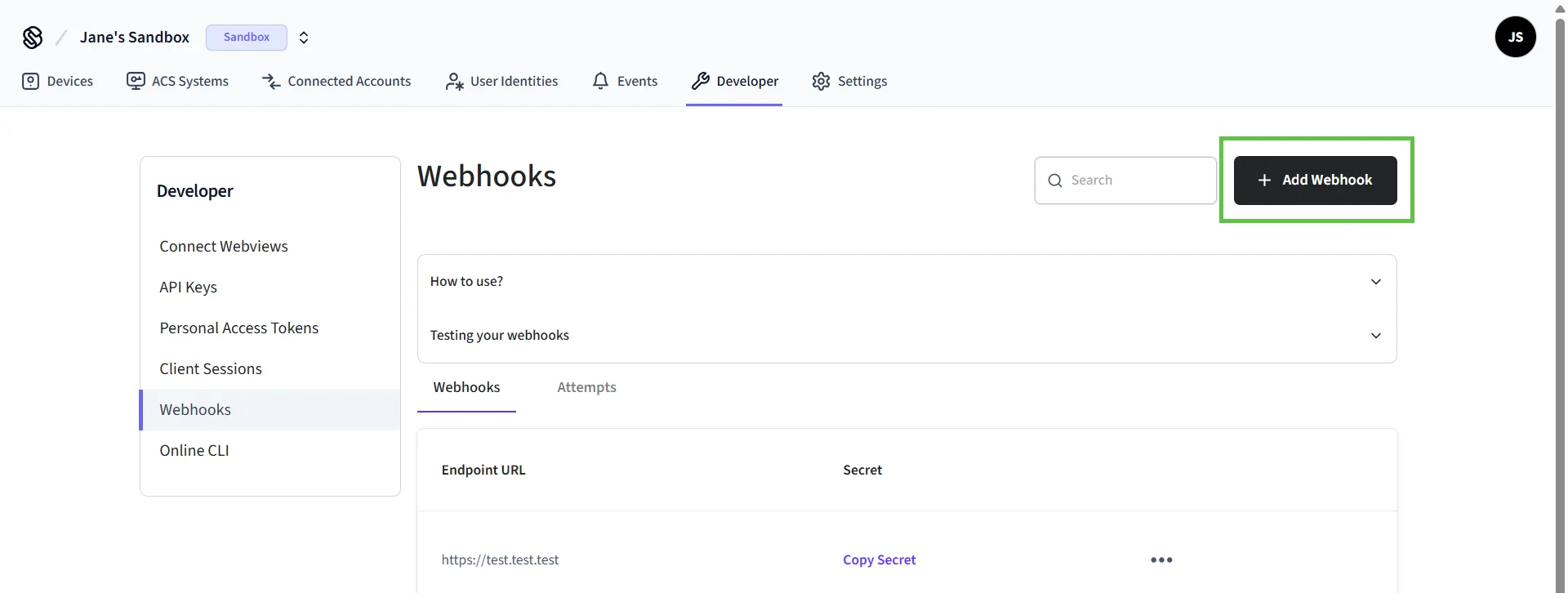 You can specify any public URL endpoint to receive webhook events by pasting the URL into the **Create Webhook** dialog.
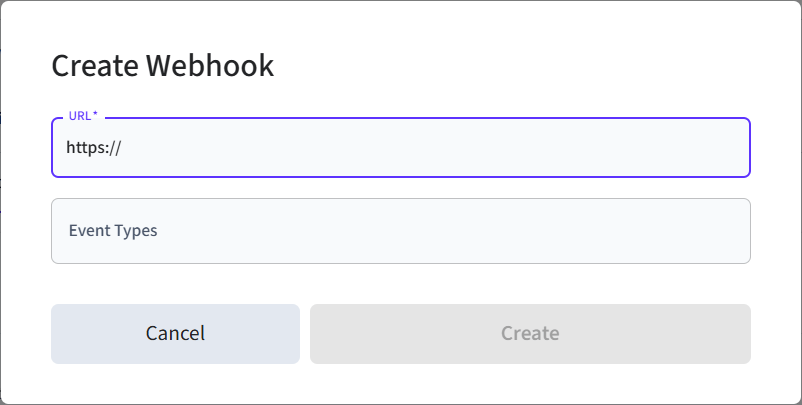 Webhook endpoints can receive many different types of events, such as `device.connected` or `device.low_battery`. It's a good idea when getting started with webhooks to review the list of webhook [event types](/docs/api/events/object) and test your endpoint using the Svix sandbox environment.
.png?fit=max&auto=format&n=H96jOW_ZJ5A7VZhZ&q=85&s=35aaf6acd400cbfad5aa6007b13e0cd6) You can view all the event types and the included fields in the **Event Catalog** tab.
You can view all the event types and the included fields in the **Event Catalog** tab.
.png?fit=max&auto=format&n=H96jOW_ZJ5A7VZhZ&q=85&s=1d7db45b74ae8b54727f436469cb59ad) We use webhooks from Svix. For more information about consuming events, such as testing or verifying webhooks, see the [Svix docs](https://docs.svix.com/receiving/introduction).
## Testing Events
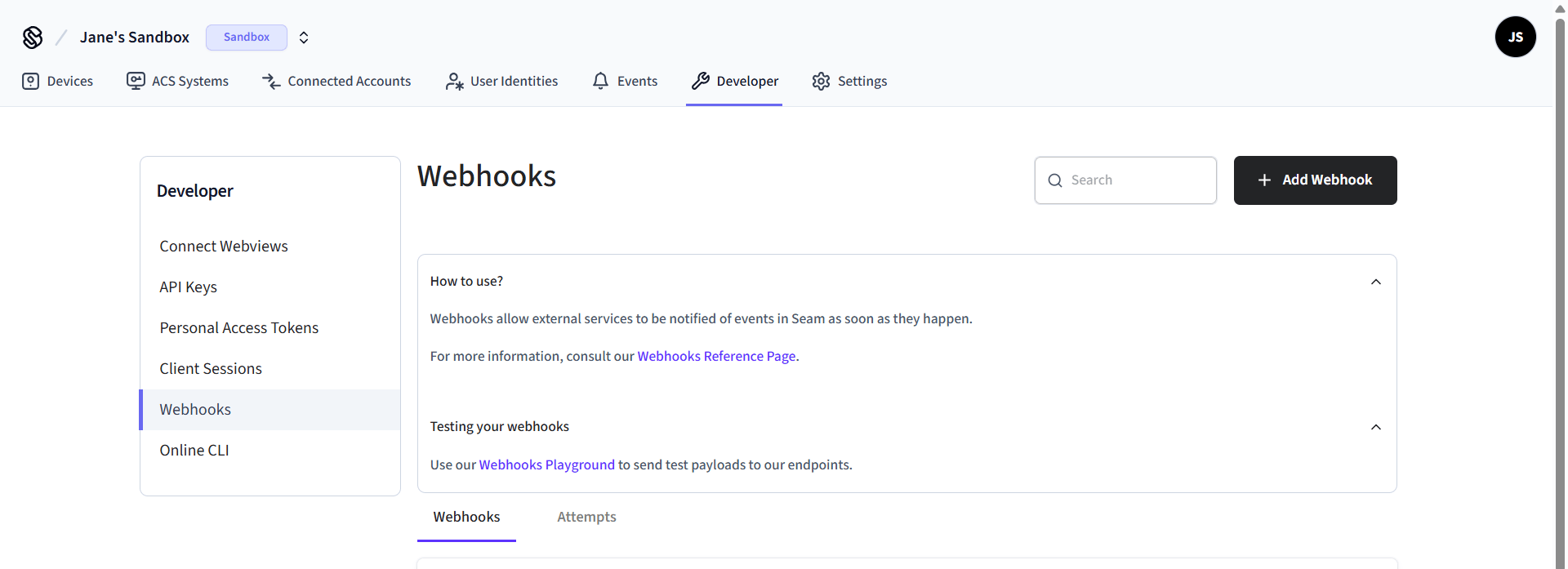
Use the webhooks playground in Seam Console to see the payload for each event and test these events against your own endpoints.
We use webhooks from Svix. For more information about consuming events, such as testing or verifying webhooks, see the [Svix docs](https://docs.svix.com/receiving/introduction).
## Testing Events
Use the webhooks playground in Seam Console to see the payload for each event and test these events against your own endpoints.
 ## Tracking a Device Count from Webhooks
If you maintain your own count of the devices in a Seam workspace—for example, to display a total in your dashboard or to reconcile against your billing—process these four events:
| Event | Effect on your count |
| --------------------------------------- | ------------------------------- |
| `device.added` | Device is present and managed |
| `device.unmanaged.converted_to_managed` | Device is present and managed |
| `device.converted_to_unmanaged` | Device is no longer managed |
| `device.deleted` | Device no longer exists in Seam |
**Track device IDs, not a bare integer.** `device.added` fires both when a
device first syncs *and* when a previously removed device is re-added, so a
counter that blindly increments on every `device.added` will drift upward over
time. Keep a set of `device_id` values and add or remove members as events
arrive; your count is then the size of the set, and a repeated event is
harmless.
Two related events deliberately do **not** change the count:
* **`device.removed`** means the device was removed externally from the connected account. Seam keeps the device and flags it, so it still exists in your workspace. If it reappears, Seam clears the flag and emits `device.added`—which is exactly the case the warning above describes.
* **`device.connected`** and **`device.disconnected`** report reachability, not existence. An offline device is still a device.
Because webhook delivery is retried and can arrive out of order, treat this as an eventually-consistent cache rather than the source of truth. Reconcile periodically with [List Devices](/docs/api/devices/list), which is authoritative.
For more about what "managed" means and why it matters for billing, see [Managed and Unmanaged Devices](/docs/core-concepts/devices/managed-and-unmanaged-devices).
## Retry Schedule for Webhooks
Seam delivers each webhook event based on a retry schedule with exponential backoff. Each message is attempted based on the following schedule, where each period is started following the failure of the preceding attempt:
* Immediately
* 5 seconds
* 5 minutes
* 30 minutes
* 2 hours
* 5 hours
* 10 hours
* 10 hours (in addition to the previous)
For example, an attempt that fails three times before eventually succeeding will be delivered roughly 35 minutes and 5 seconds following the first attempt.
If you remove or disable a webhook, delivery attempts to the endpoint are disabled as well.
## Tracking a Device Count from Webhooks
If you maintain your own count of the devices in a Seam workspace—for example, to display a total in your dashboard or to reconcile against your billing—process these four events:
| Event | Effect on your count |
| --------------------------------------- | ------------------------------- |
| `device.added` | Device is present and managed |
| `device.unmanaged.converted_to_managed` | Device is present and managed |
| `device.converted_to_unmanaged` | Device is no longer managed |
| `device.deleted` | Device no longer exists in Seam |
**Track device IDs, not a bare integer.** `device.added` fires both when a
device first syncs *and* when a previously removed device is re-added, so a
counter that blindly increments on every `device.added` will drift upward over
time. Keep a set of `device_id` values and add or remove members as events
arrive; your count is then the size of the set, and a repeated event is
harmless.
Two related events deliberately do **not** change the count:
* **`device.removed`** means the device was removed externally from the connected account. Seam keeps the device and flags it, so it still exists in your workspace. If it reappears, Seam clears the flag and emits `device.added`—which is exactly the case the warning above describes.
* **`device.connected`** and **`device.disconnected`** report reachability, not existence. An offline device is still a device.
Because webhook delivery is retried and can arrive out of order, treat this as an eventually-consistent cache rather than the source of truth. Reconcile periodically with [List Devices](/docs/api/devices/list), which is authoritative.
For more about what "managed" means and why it matters for billing, see [Managed and Unmanaged Devices](/docs/core-concepts/devices/managed-and-unmanaged-devices).
## Retry Schedule for Webhooks
Seam delivers each webhook event based on a retry schedule with exponential backoff. Each message is attempted based on the following schedule, where each period is started following the failure of the preceding attempt:
* Immediately
* 5 seconds
* 5 minutes
* 30 minutes
* 2 hours
* 5 hours
* 10 hours
* 10 hours (in addition to the previous)
For example, an attempt that fails three times before eventually succeeding will be delivered roughly 35 minutes and 5 seconds following the first attempt.
If you remove or disable a webhook, delivery attempts to the endpoint are disabled as well.